
- You, the operator. Your wallet holds the pool’s operator role. You fund the rewards and set the pool’s terms.
- Providers. They deposit SQD and earn rewards through the Network App, as described in Provide SQD to a Portal Pool.
- SQD. It creates pools, registers Portals to them, and sets the limits that apply to every pool. It can also freeze or close a pool.
How a Portal Pool works
1
SQD creates the pool
SQD creates the pool on your behalf, with the terms you choose:
- Capacity: how much SQD the pool collects, at least 1,000,000. Leave some room above that minimum; see Limits.
- Reward token: USDC or USD₮0. It cannot be changed later.
- Distribution rate: how much the pool pays providers per day when it is full.
2
Open the pool to providers
A new pool admits only you: its whitelist is on, and you are the only address
on it. Nobody else can deposit until you either turn the whitelist off, for a
public pool, or add your providers’ addresses, for a private one. The app has
no control for this; call
setWhitelistEnabled(false) or
addToWhitelist on the pool contract.3
Register your Portal
The pool’s stake gives compute units to the Portals registered to it, up to 10
per pool. SQD registers them:
- Generate a key and peer ID for your Portal, as in the self-hosting guide.
- Send the peer ID to SQD. SQD checks that you control it and registers it to your pool.
- Once it is registered, start the Portal, or restart it if it is already running.
removePortal(clusterId, portalIndex) on the Portal registry. Adding one back
goes through SQD again.4
Providers fill the pool
Providers deposit SQD in the Network App. When deposits reach the capacity, the
pool activates and stakes the SQD. If that does not happen within 30 days of
creation, the pool fails and providers take their SQD back.One wallet can deposit at most 250,000 SQD, so a pool needs at least
capacity ÷ 250,000 providers to fill.
5
The pool runs on your funding
Once the pool is active, your Portal gets its compute units and providers earn
rewards, paid from the credit you fund. Keep it funded with top-ups. Part of
each top-up is burned, and credit cannot be withdrawn while the pool runs; see
Funding rewards. If the credit runs out, providers stop
earning, but your Portal keeps its compute units.
6
Providers come and go
After activation, providers can deposit up to the capacity and leave at any
time through an exit queue. If total deposits fall below 1,000,000 SQD, the
pool pauses: providers earn nothing and your Portal gets no compute units until
deposits recover.
Pool lifecycle
The steps above move the pool through a series of states. The app shows the current one as a status label on the pool page. The contract’sgetState returns a number, and the app adds In
Debt for an active pool with no credit left.
A pool activates only once. After that it moves between Active and
Paused, and never returns to Collecting.
The app’s Paused is about deposits. It is unrelated to a pool that SQD has
frozen, which the app does not label.
Funding rewards
You fund rewards by topping up the pool with its reward token: the TOP UP button on the Manage tab, ortopUpRewards on the
contract. Not all of a top-up reaches providers.
Where a top-up goes
Each top-up is split the moment it arrives:
For example, a top-up of 1,000 USD₮0 adds 800 USD₮0 of reward credit, and
200 USD₮0 buys SQD that is burned.
SQD sets the split, and it applies to every pool, so it can change. The top-up
dialog shows the current split and how much SQD the burn share buys before you
confirm. On chain, call
feeConfig() on the
fee router; the
values are in basis points.
The burned share is gone for good. It is not returned if the pool later fails
or closes.
How credit is spent
The distribution rate is what the pool pays per day when it is full. Every committed SQD earns the same amount,rate ÷ capacity per day, so the pool
spends credit in proportion to how full it is:
When credit runs out
When the credit reaches zero, the pool shows as In Debt and providers stop earning. Nothing is owed for that period: when you top up again, rewards restart from the moment of the top-up, and the gap is never paid out. While the pool is in debt, you cannot change the distribution rate or the capacity. Top up first.Topping up before activation
You can top up while the pool is still collecting. The credit waits until activation, but the burn share is spent immediately, and if the pool fails to fill, you get the credit back but not the burned share. The top-up dialog warns you about this.When a top-up fails
The burn share is swapped on PancakeSwap inside your top-up transaction. The swap must get a price within 3% of the 30-minute average price. If it cannot, for example after a sharp price move or because the amount is large for the available liquidity, the whole top-up reverts and nothing is taken. Try again later or split the amount into smaller top-ups. You can check beforehand withisSlippageProtectionReady(rewardToken) on the fee router: it returns true
when the swap path is usable.
A top-up also reverts while the distribution rate is zero, and once the pool
has failed or closed.
Limits
These limits apply to every pool. SQD sets them and can change them; changes apply to existing pools, except the whitelist default, which only affects new ones. Read the current values from the factory and registry contracts.Manage the pool in the Network App
Open your pool athttps://network.sqd.dev/portal-pool/<pool address> and
connect the operator wallet. The Manage tab has two cards:
- Pool Status shows the Rewards Balance and Runway, with the TOP UP button. The dialog takes the total amount and shows the split under Where your deposit goes. Confirming asks your wallet for a token approval if one is needed, then for the top-up itself.
- Pool Settings shows the Distribution Rate (per day) and Max Pool Capacity, each with an edit button. Editing is disabled while the pool is collecting, in debt, failed, or closed.
Operator functions
These are the contract functions behind the app’s buttons, plus the ones only reachable on chain. Only the operator wallet can call them; anyone else getsNotOperator.
topUpRewards
topUpRewards(uint256 amount)
Adds amount of the reward token to the pool, split as described in
Where a top-up goes. amount is in the token’s base
units: USDC and USD₮0 have 6 decimals, so 1,000 USD₮0 is 1000000000.
Call approve(pool address, amount) on the reward token first; the app does
this for you.
Works while the pool is collecting, active, or paused. Reverts with
DistributionTurnedOff while the rate is zero.
setDistributionRate
setDistributionRate(uint256 newRatePerSecond)
Sets the reward rate the pool pays at full capacity. Rewards earned up to this
moment are settled at the old rate.
The contract takes reward-token base units per second, multiplied by 1000.
The app takes a daily amount and converts it. To convert by hand:
462962.
- Not available while the pool is collecting or closed.
- Reverts with
PoolHasDebtwhile the pool has no credit left. 0stops distribution. The app does not allow it, and while the rate is zero, top-ups revert.- Any other value must lie between the factory’s minimum and maximum rates.
A value too small for the capacity reverts with
InsufficientRewardPrecision.
setCapacity
setCapacity(uint256 newCapacity)
Sets how much SQD the pool accepts, in SQD base units (18 decimals).
- Available only after the pool has activated, and not once it is closed.
- At least 1,000,000 SQD (
BelowMinimum) and at least what is deposited now (BelowCurrentStake). - Reverts with
PoolHasDebtwhile the pool has no credit left.
The rate is the payout at full capacity. Raising the capacity without raising
the rate lowers what each SQD earns, and the APY the app shows drops with it.
Whitelist
Contract only. A whitelisted pool accepts deposits only from listed addresses, and itsplSQD receipt tokens can only be sent to listed addresses. The
whitelist never blocks exits, withdrawals, or reward claims. The app marks a
whitelisted pool with a Whitelist badge.
You can change the whitelist at any time, including after providers have
deposited.
transferOperator
transferOperator(address newOperator)
Contract only. Hands the operator role to newOperator, together with the
pool’s cluster in the Portal registry. If the whitelist is on, the new
operator is added to it. Not available once the pool has failed or closed, or
while SQD has frozen it. A pool shown as Paused can still be transferred.
setMetadata
setMetadata(string metadata)
Replaces the pool’s metadata in the Portal registry, up to 1,024 bytes. The
app reads a JSON object with name, description, and website fields from
it; the pencil next to the pool’s name writes the same object.
recoverRewards
recoverRewards() → amount
Contract only. Sends reward tokens back to you after the pool ends:
- Failed: the pool’s whole reward-token balance.
- Closed: the credit that was never distributed. Rewards providers had already earned stay in the pool for them to claim.
Actions SQD can take
SQD also sets the limits that apply to all pools.
Provider functions
Providers normally use the Network App. For reference, these are the calls behind it:checkAndFailPortal() lets anyone record the Failed state on chain once
the collection window has passed. Nothing depends on it.
Read-only functions
Use these to monitor the pool. Reading costs nothing and needs no wallet.getDebt() and the debt fields of getRewardStatus() and
getPoolStatusWithRewards() are kept for compatibility and always return 0.
Other getters expose internal or unused storage.
Call methods on Arbiscan
Arbiscan, the block explorer for Arbitrum One, can call any of the functions above through a browser wallet. You need:- The operator wallet, in a browser wallet such as MetaMask or Rabby, set up for Arbitrum One.
- A little ETH on Arbitrum One for gas.
- For a top-up, the reward tokens.
1
Open the pool on Arbiscan
Open 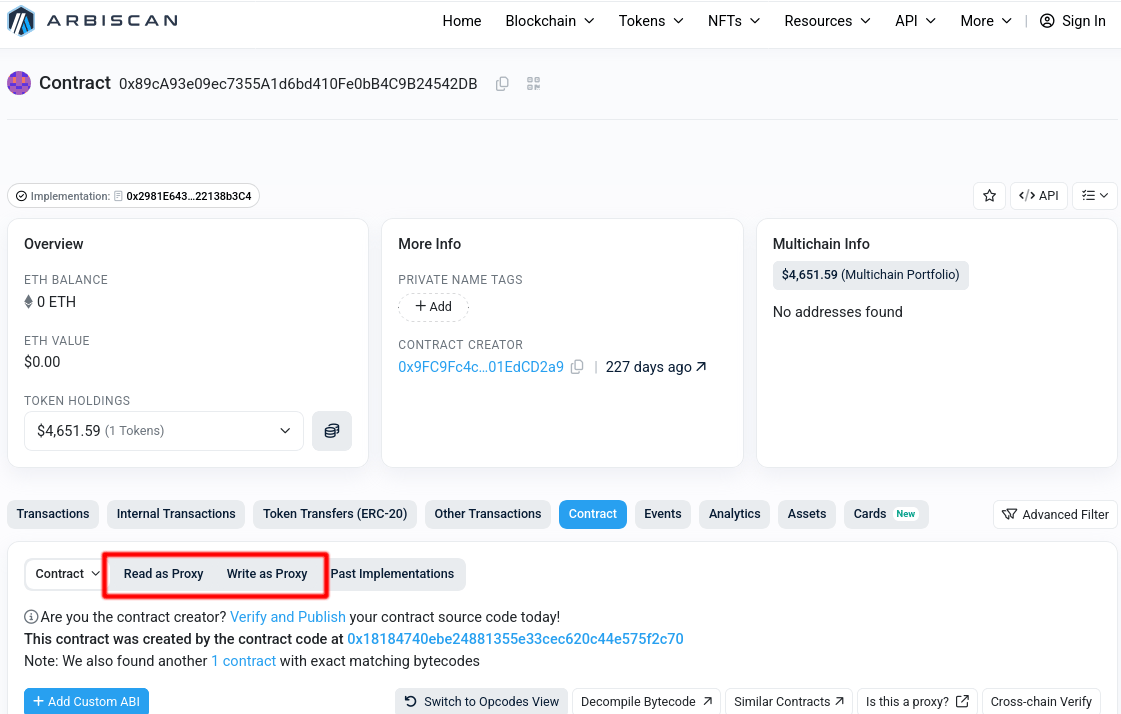
https://arbiscan.io/address/<address of your pool>. Go to the
Contract tab.Pools are proxy contracts, so use the Read as Proxy and Write as Proxy
sub-tabs. The plain Read Contract and Write Contract tabs show only the
proxy’s own functions (if anything), not the pool’s.2
Read values
Open Read as Proxy. Expand a function, fill in its arguments if it has
any, and click Query. The result appears under the function. For example,
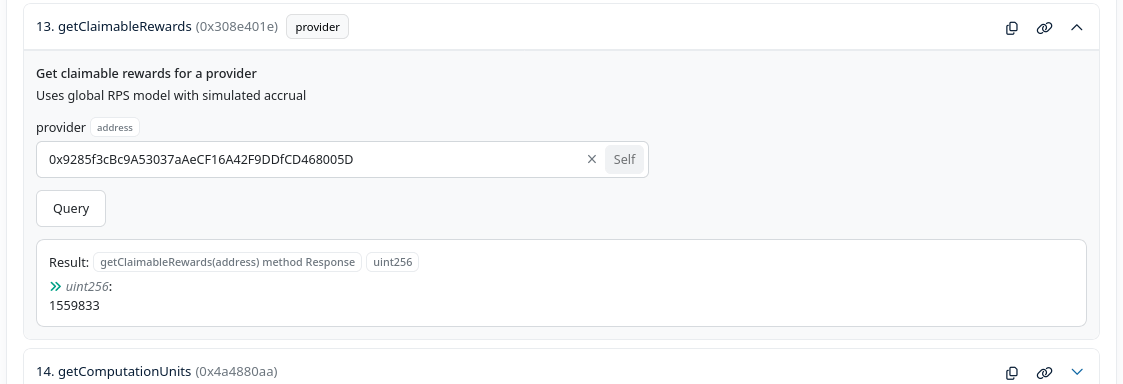
getClaimableRewards with a provider’s address shows the rewards they can
claim, in reward-token base units.Reading does not need a wallet connection.3
Connect your wallet
Open Write as Proxy and click Connect Wallet. Choose your wallet and
approve the connection in it. Make sure the wallet is on Arbitrum One.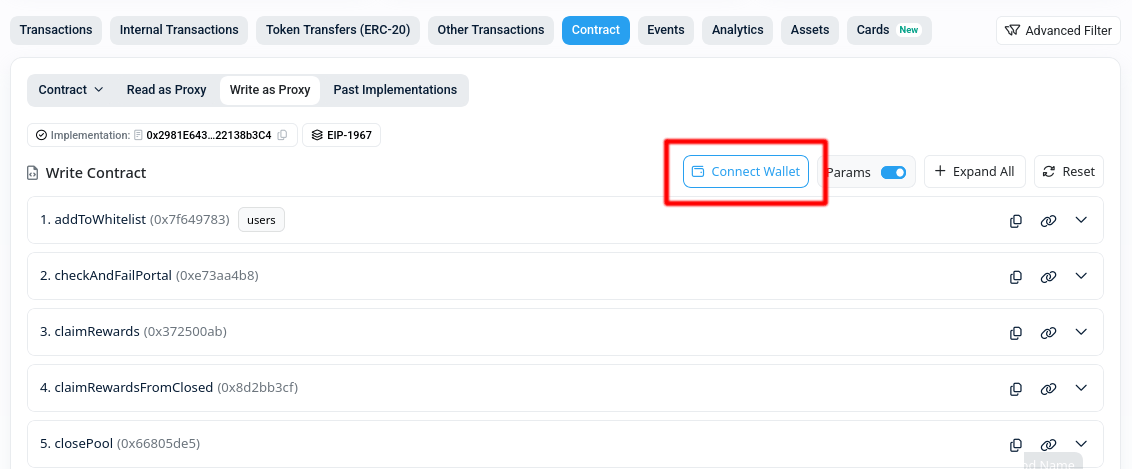
Your wallet address appears in place of the Connect Wallet button.
4
Approve tokens, for a top-up
Skip this step unless you are calling
topUpRewards.Open the reward token’s page on Arbiscan, at the address returned by
getRewardToken. Use its Write Contract tab, or Write as Proxy if the
token is a proxy. Connect your wallet as in the previous step, expand
approve, and enter:spender: the pool address.amount(orvalue): the amount in base units, at least as much as you are about to top up.
5
Call the function
Back on the pool’s Write as Proxy tab, expand the function and fill in its
arguments. Enter amounts in base units. The + button next to a number
field can append the zeros for you.Click Write. Your wallet shows the transaction; check the network and the
gas fee, then confirm.
6
Check the result
Click View your transaction under the function. A Success status means
the call went through. For a top-up, the Logs of the transaction include a
RewardsToppedUp event with the amount received and how it was split.If the wallet warns that the transaction will fail, or the status is
Fail, the error name usually tells you why, for example PoolHasDebt or
NotOperator. Look it up in the description of the function you called.